Instructors, teachers and trainers
Assign course leaders, manage their permissions, and record attendance and session passes.
Last updated 7 days ago
What can an instructor do in Ledenbeheer?
By default, an instructor can record attendance only for the group they are responsible for. Assign the instructor as the course leader to grant this access.
You can also give the instructor additional limited permissions, such as:
Access to profile details
Recording session passes
Managing recommendations for their groups
Sending messages to their groups
Adding videos to the Video Zone for their groups
To grant these permissions, go to "Settings > Permissions management" and add the instructor as an administrator. You can specify exactly which permissions they have in the system.
Note: Administrators can also be allowed to record attendance for all activities. If you enable this, the instructor can record attendance even for activities they are not responsible for.
Assign a trainer or teacher as the person responsible
Set the person responsible for each activity on its General tab.
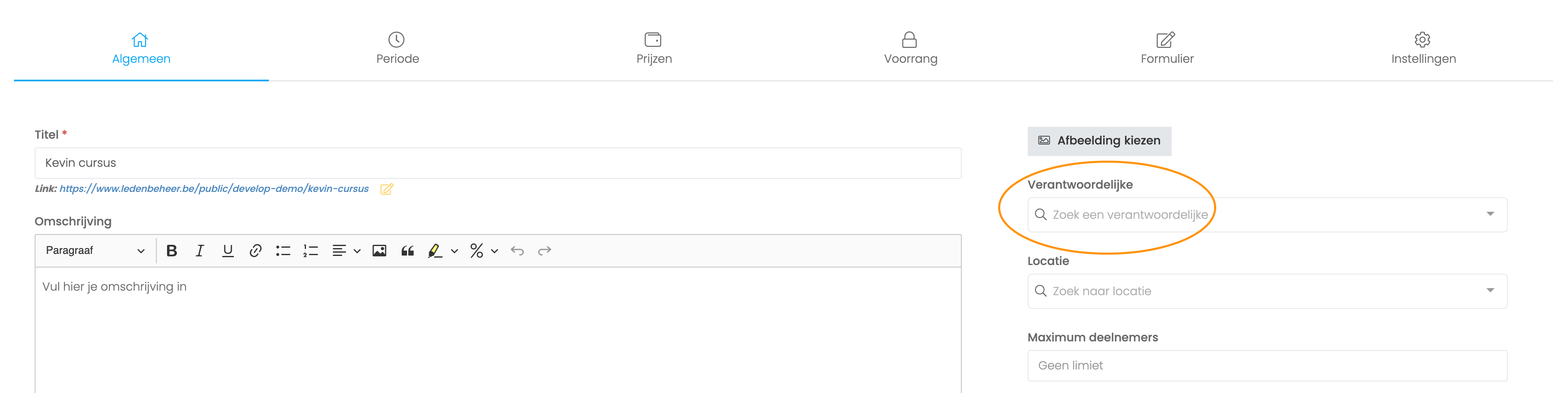
Choose the teacher from the member list or add a new user.
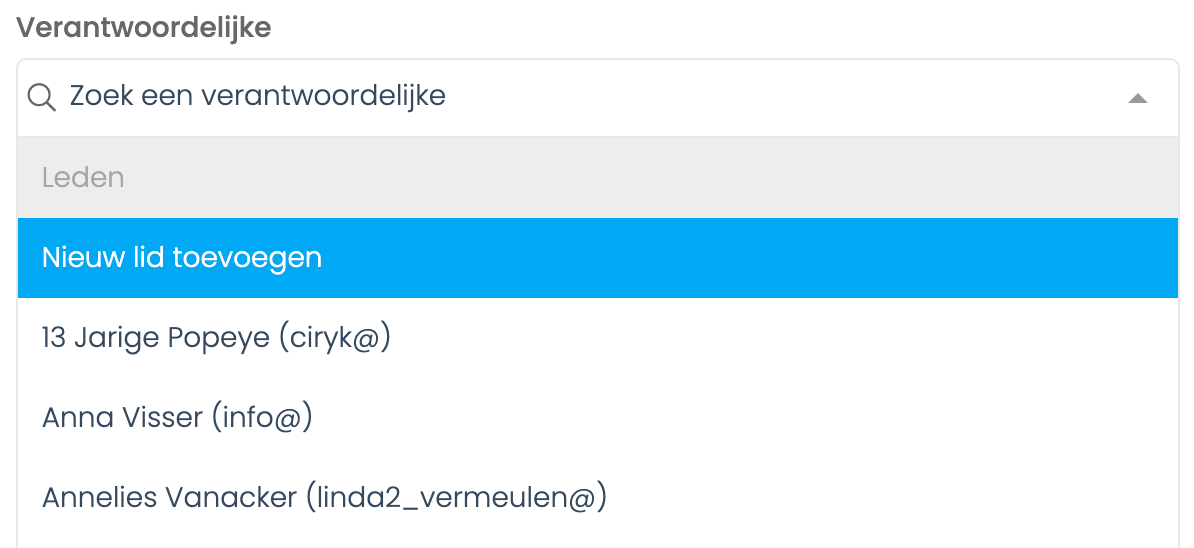
The teacher then receives an email invitation to confirm. Someone who is already an administrator on your account will not receive this email when assigned as the person responsible.
The teacher can then sign in using the invited email address. If they use another email address, they cannot record attendance.
To let a teacher record attendance for all classes, add them as an administrator under "Settings" > "Permissions management" and allow them to record attendance for all activities.
Record attendance as a trainer or teacher
Once the teacher has accepted the invitation, assign them as the person responsible for a course. They automatically gain permission to record attendance for that activity.
To record attendance, sign in at https://admin.ledenbeheer.be using the email address set by the club.
The teacher can now see their assigned activities in their profile and record attendance.
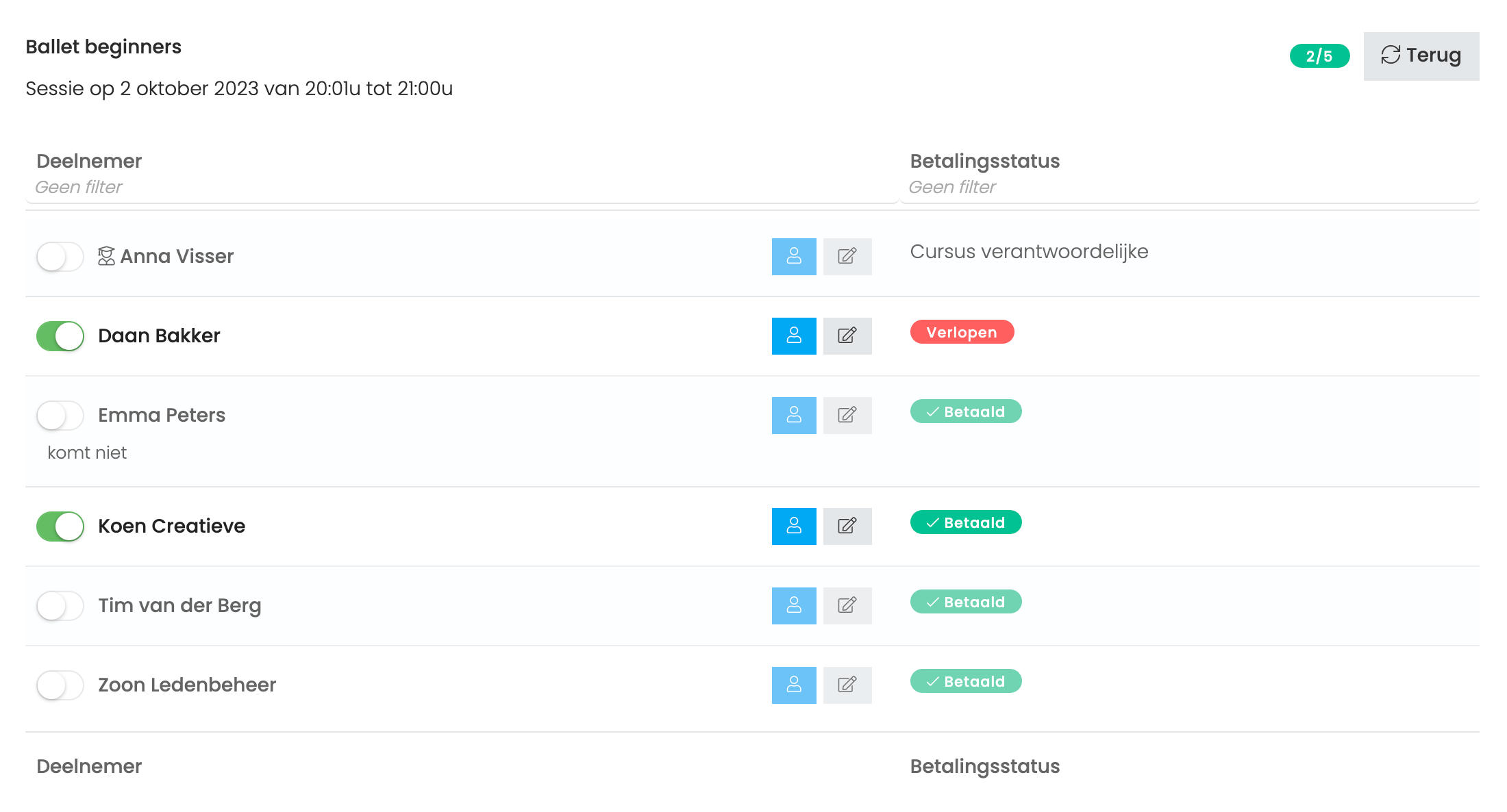
When recording attendance, a trainer or teacher can see only the participant’s first and last name and payment status. Other personal details are hidden for GDPR reasons.
If a teacher or trainer needs to see a member’s details, add them as an administrator under "Settings" -> "Permissions management" and grant the "Show contact details in attendance" permission.
There are two icons next to each person:
A blue profile icon: Use this to give trainers additional permission to view that member’s personal details.
A pencil icon: Use this to add a note about that person for the specific session, such as a planned absence.
Assigned trainers also appear on the attendance lists, so you can track their attendance.
Substitute teachers
If a trainer substitutes for a session, assign them as a person responsible for that activity. Remove the assignment afterwards; their attendance records remain.
Attendance matrix
The attendance matrix summarises all sessions and registered participants. It shows who attended on a given date, lets you record attendance, and automatically counts how many times each person attended.
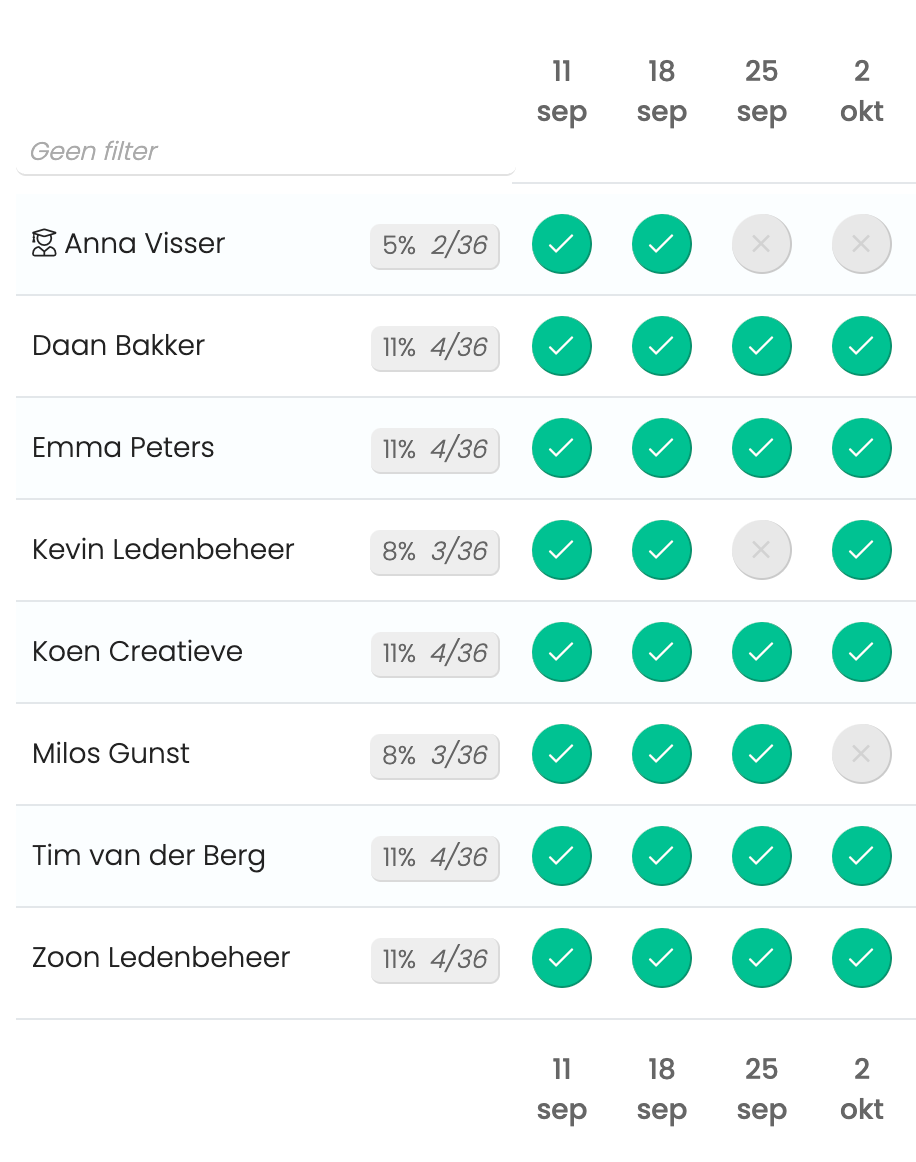
Open the attendance matrix using the button at the top of Attendance.
You can also download the attendance matrix as an Excel file.
Record session passes
A trainer or teacher can also be allowed to record session passes. Learn more in this article:
Frequently asked questions
My teacher cannot see any groups for recording attendance
My teacher cannot see any groups for recording attendance
This can have two causes:
They are not signed in with the correct email address.
They are not using https://admin.ledenbeheer.be; they are using app.ledenbeheer.be instead.
My teacher is under 16 and cannot create an account as the person responsible
My teacher is under 16 and cannot create an account as the person responsible
Under the GDPR rules described here for Belgium, people under 16 cannot create their own account on platforms where purchases can be made. Because registrations through a Ledenbeheer account are treated as purchases, users must be at least 16 to create an account independently.
Minors can be added to a parent’s account. In that case, the teacher must sign in with the parent account to manage the child’s registrations.
My teacher belongs to several clubs and cannot see our attendance records
My teacher belongs to several clubs and cannot see our attendance records
This happens when a club gives a teacher more permissions by making them an administrator. The teacher then has broader club permissions and access to more menus.
The teacher can click the club name at the top left of their account and switch to "User admin". They can view all attendance records there.
Still need help? Ask the team