Remove or cancel a registration
Cancel a member registration through an activity, cost note or profile.
Last updated 7 days ago
Remove registrations
You can cancel or remove a registration in three ways.
Cancel a registration
Under Activities > Registrations, find the activity from which you want to remove the member.
Click the yellow pencil icon to edit the order.

You can then move or remove the registration.
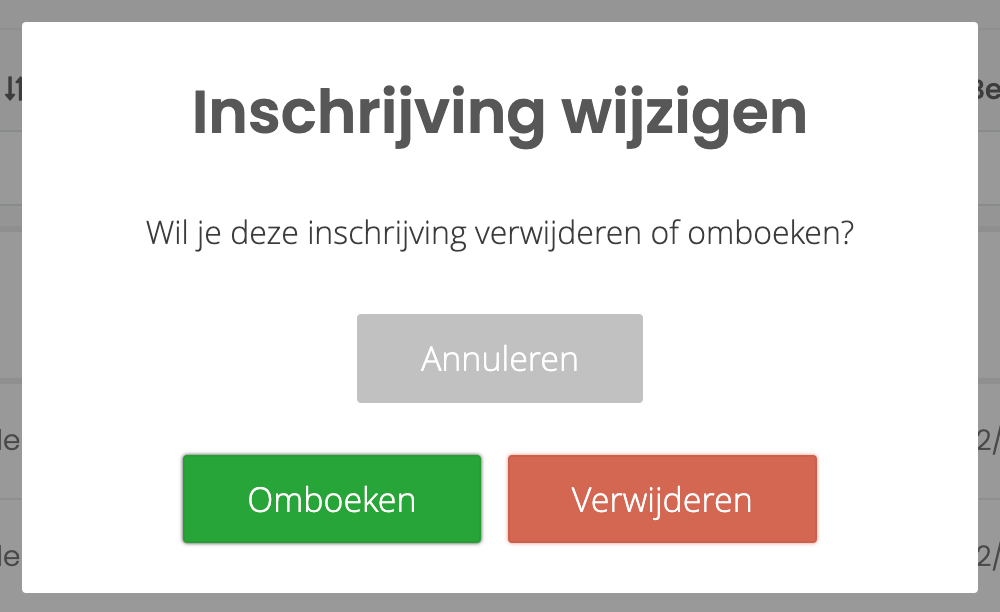
Select the line on the cost note to remove, and therefore the activity from which the member should be withdrawn.
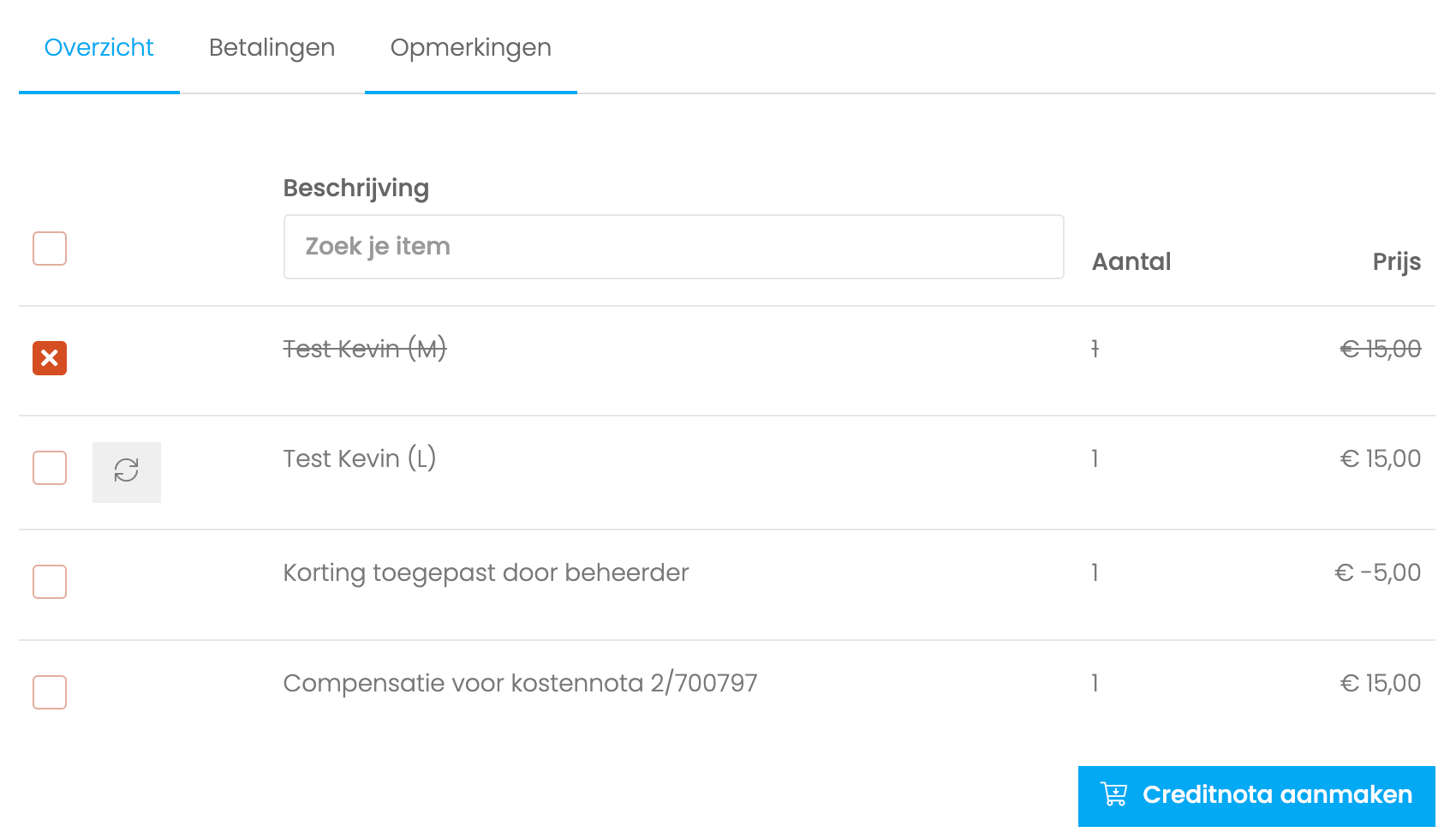
Click Create credit note. In the next step, choose whether to issue a refund.
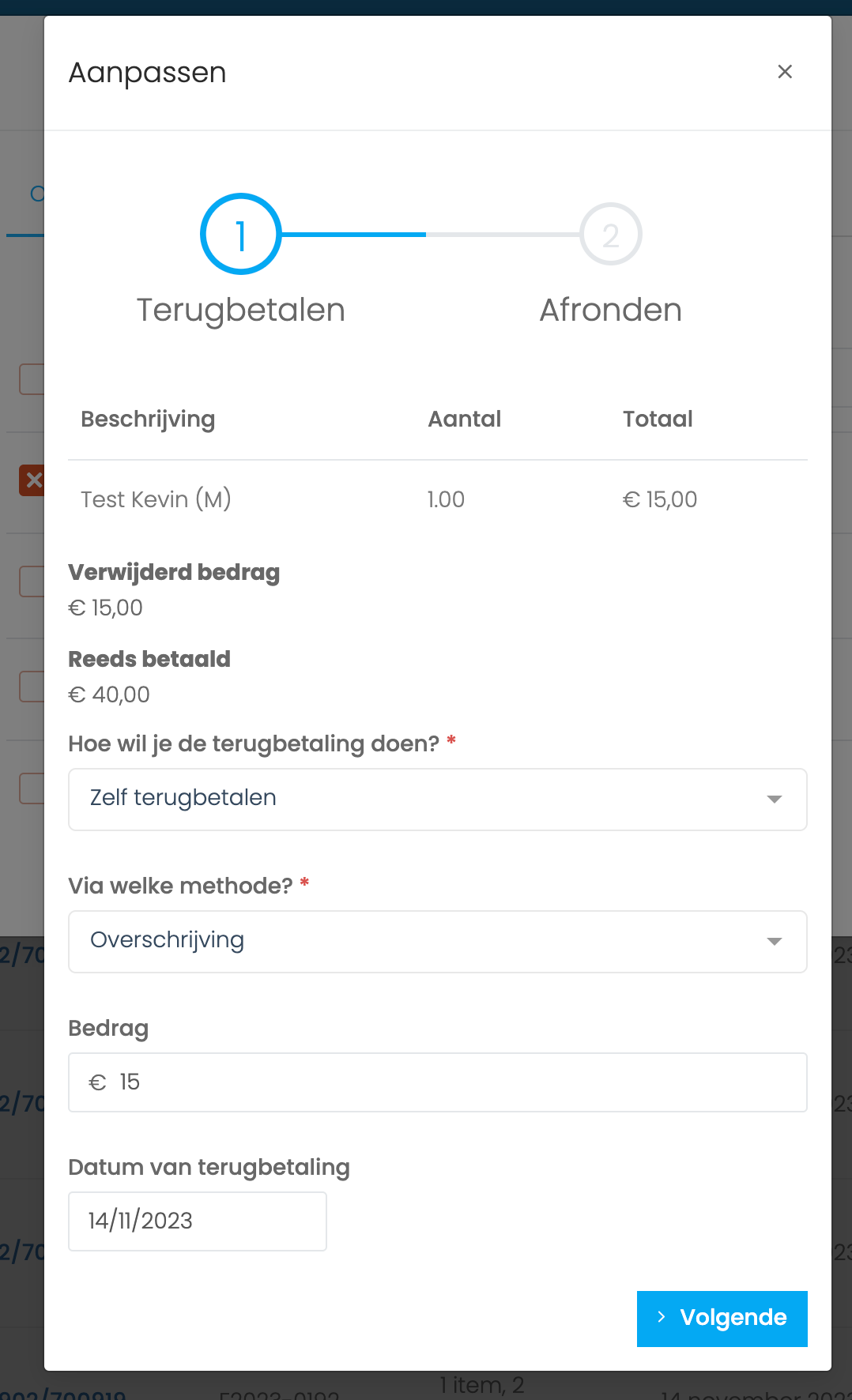
For more about credit notes and refunds, see Credit notes and refunds
The member will disappear from the lists. You can still see which classes they attended in the attendance matrix.
To remove their attendance records too, select that option during cancellation.
Remove a registration through cost notes
Go to Finance > Cost notes.
Find the member’s cost note using the filters at the top of the page. Click Edit cost note.
Then follow the steps above.
Remove registrations from a member profile
Find the member in your contact list and click their name to open the profile.
Open the Finance tab, select the cost note you want to change, and follow the steps above.
Frequently asked questions about cancellations
Can members cancel their own registration?
Can members cancel their own registration?
No. Each club has its own cancellation terms, so members must contact the club to cancel.
Still need help? Ask the team