Move or rebook members
Move registrations to another course or family member.
Last updated 3 days ago
Move or rebook a registration
Registered for the wrong activity?
Someone registered for the wrong course, or changed their mind after registering? As an administrator, you can move them to a different course.
Ledenbeheer removes the member from the original course and adds them to the new one. It calculates any price difference automatically and sends a new cost note or credit note.
To rebook a registration:
Go to Finance > Cost notes.
Click Edit cost note.
Click the two-arrow icon next to the course you want to change.
Choose the new course and price category.
Prices and discounts are recalculated automatically when you rebook.
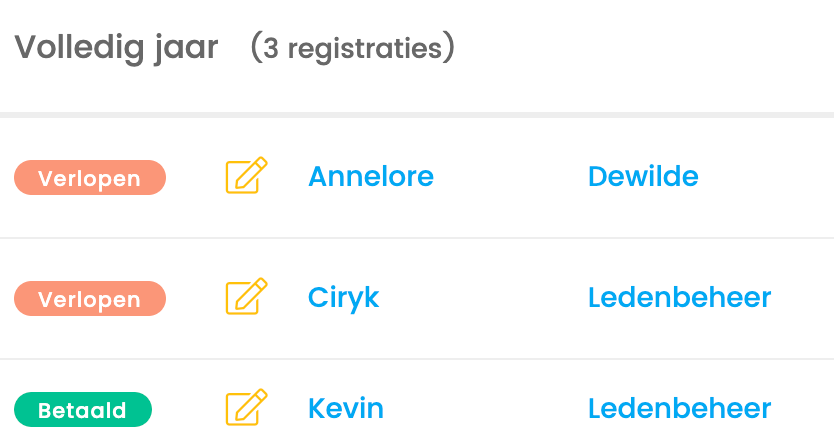
You can also move a member to another group from the registration list by clicking the pencil icon.
Registered the wrong family member?
Is the right family member not created yet? You can add a new user while rebooking. The new user is selected automatically, then you confirm the rebooking. The rebook icon (two arrows) is also visible when there are no other family members yet.
Through the cost note
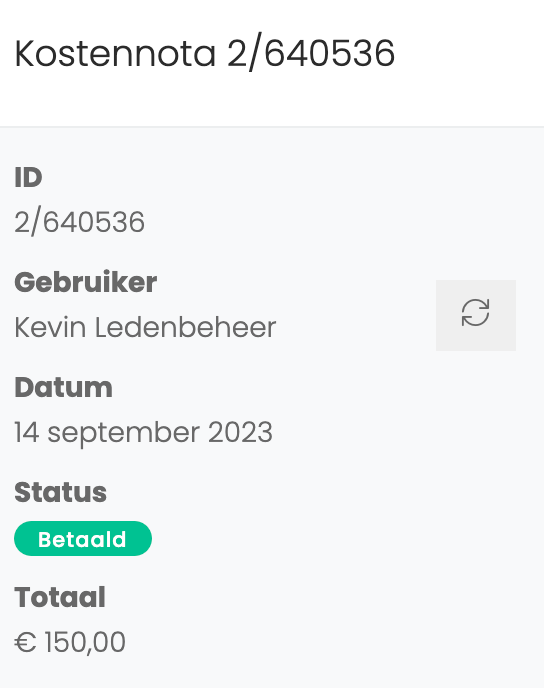
Open that person’s cost note and click Edit. The two-arrow icon next to the person’s name lets you select another family member.
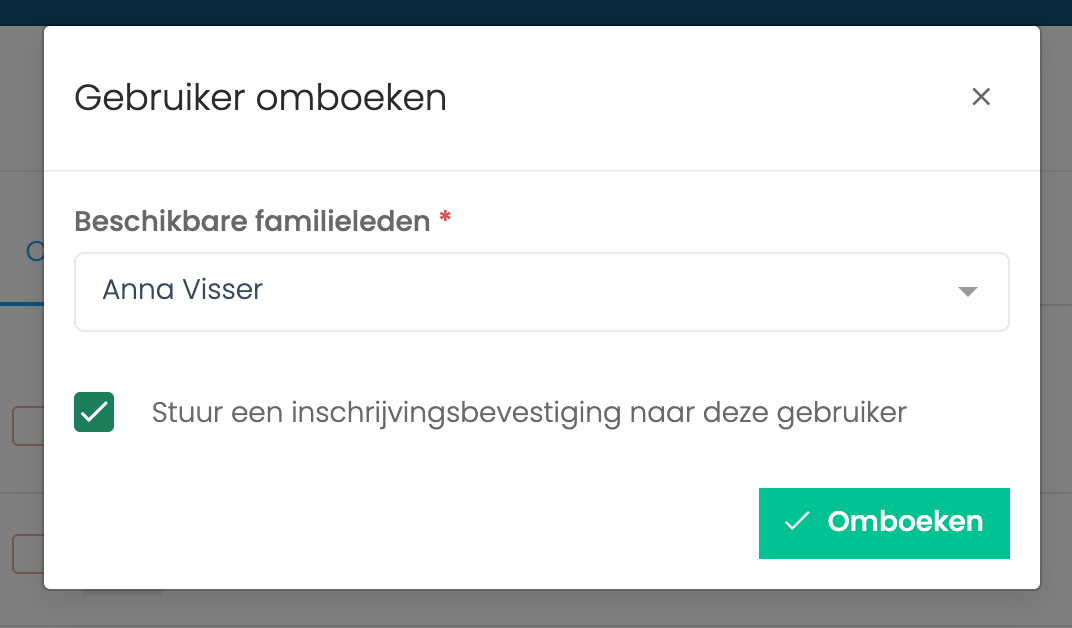
Select the family member who should be registered.
Through registrations
Select your course under Course offerings > Registrations, then click the pencil icon.
Through the member profile
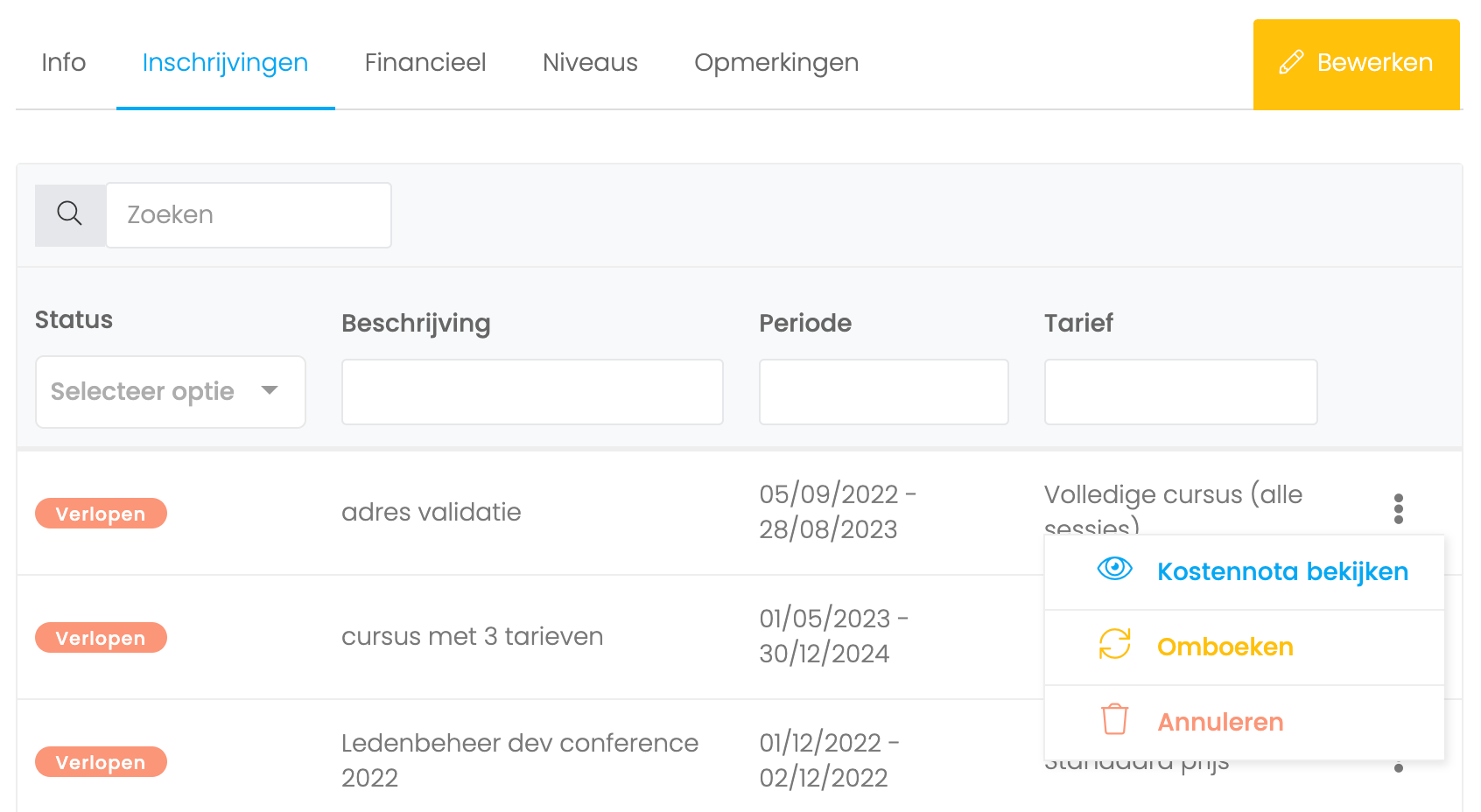
Click the member’s name to open their profile. On the Registrations tab, click the three dots next to the course you want to change.
Was this helpful?
Still need help? Ask the team